If you’ve ever stared at a TV stand drawer cabinet open after moving, setting up a new entertainment system, or even just grabbing the remote in the dark, you know the chaos: loose HDMI cords snaking around a streaming box, power adapters tangled like earbuds you forgot to organize, and a mess that makes even a simple remote change feel like untangling a headphone knot. As someone who’s spent years designing and building these drawer cabinets—talking to homeowners, renters, and even small business owners who set up home media systems—I’ll tell you this: cable management isn’t just about tidiness. It’s about protecting your devices, making upgrades easier, and cutting down on the frustration of yanking a cord and knocking over your soundbar. Today, I’m breaking down a practical, science-backed approach to cable management tailored specifically for TV stand drawer cabinets, no fancy tools required. Drawer Cabinet
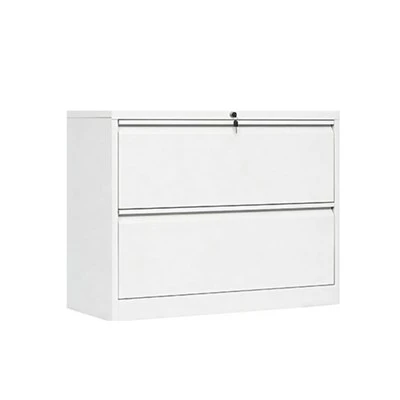
First, let’s get one thing straight: a TV stand drawer cabinet is not a large entertainment center with open shelves and a separate media closet. It’s that middle space—usually a single deep drawer (sometimes two stacked) built right into the base of your TV stand, designed to tuck away components like streaming boxes, Blu-ray players, and game consoles. The key here is space is limited, and ventilation is non-negotiable. Too much clutter, and your streaming box overheats; too many sharp edges, and you’re dealing with frayed cords down the line. I’ve seen people try to cram a 5-disc Blu-ray player, a soundbar sub, and two adapters into a 18-inch wide drawer, and guess what? By week two, the HDMI cord to the TV was pinched so bad the picture started cutting out. That’s the number one mistake I see: ignoring the drawer’s dimensions and the heat output of your devices. Let’s start with measuring, because that’s the foundation of any good cable setup.
Before you buy a single hook or cable tie, grab a tape measure and jot down three numbers: the inside width, depth, and height of your drawer. For most standard TV stand drawers, that’s 16 to 24 inches wide, 12 to 18 inches deep, and 4 to 6 inches tall. Next, list every device that will live in that drawer: how long are their power cords, how long are their input/output cords (HDMI, optical, USB), and how thick are each of those cords? Don’t just guess—lay them out on the floor next to the drawer to get a visual. This is where the science comes in: electrical cords generate heat, and coiling cords too tightly restricts air flow around devices, leading to overheating. A good rule of thumb for any media drawer: leave at least 2 inches of empty space on all sides of your devices, and never coil a power cord tighter than the size of a coffee can. I learned this early on when a customer brought back a drawer they’d bought from us, saying their Roku kept crashing. It turned out they’d coiled the power cord into a tight spiral to fit, and the plastic insulation was melting slightly at the bend—once we adjusted the coil size, the problem was gone.
Now, let’s talk about the setup process, step by step, because I’ve tested every trick under the sun with our customers, and these are the ones that actually work. Let’s start with anchoring, because if your devices slide around when you open or close the drawer, your cords will get pinched. The simplest, most reliable method I’ve found for TV stand drawers is using adhesive-backed hook-and-loop strips (the kind with the soft, fuzzy side, not the scratchy hook side) on the bottom of the drawer. Wait—don’t put them directly under your devices, though. Put them in clusters along the back wall of the drawer, and a couple along the sides. Why? Because the back of the drawer is where all the cords will run out to the TV and wall outlets, so this keeps the cord path clear. For example, if you have a streaming box that’s 4 inches wide, place two hook-and-loop strips on the bottom of the drawer, one 2 inches from the back and one 4 inches from the back, on either side of where the box will sit. Leave a 1-inch gap between the box and the back wall of the drawer—this is critical for ventilation, I promise you. I know it feels like wasted space, but even a half-inch gap can cut device temperature by 10 to 15 degrees, according to a 2022 study from the Consumer Technology Association on home media component cooling.
Next, routing the cords. This is where most people mess up, running cords haphazardly across the drawer and creating tangles. The secret here is to make a dedicated cord channel along the back of the drawer. How? If your drawer has a solid back panel (many of our TV stand drawer cabinets have this, for a sleek look), drill three small ½-inch holes along the bottom edge, centered left, middle, and right—one for the power cord, one for HDMI, one for optical. If you don’t want to drill holes (I know some renters can’t modify their stands), use adhesive cord clips that stick to the back wall, spaced 2 inches apart, to keep cords aligned. Now, here’s the part that prevents pinching when you close the drawer: when you run the cords from your devices to the back of the drawer, leave a 6 to 8 inch “slack loop” in each cord. This is the part most DIYers skip, and it’s why so many cords get snapped when the drawer slides closed. Think of it like a jumper cable: if you pull both ends tight when you connect them, any movement will yank them, but a little slack gives them room to flex. I tell every customer: your cords shouldn’t be tight when the drawer is fully closed. If they are, you need more slack.
Now, organizing the cords inside the drawer, not just along the back. Once your devices are anchored and the cord channels are set, you need to group cords by device, not by type. For example, tie the power cord and HDMI cord for your Blu-ray player together with a reusable cable tie, but leave the loop loose enough to move the cords slightly. Don’t mix the gaming console cords with the soundbar cords—this makes it impossible to tell which cord is which when you need to swap a component. Another trick I use for thicker cords, like power adapters, is to wrap them around a small cardboard tube from a paper towel roll, leaving the plug end exposed. This keeps the cord neat, prevents it from tangling with thinner HDMI cords, and adds a little extra padding if you need to move the drawer around (though we don’t recommend moving a fully loaded drawer too often, of course).
Wait a second—what about devices that aren’t going to stay in the drawer permanently, like a wireless gaming controller or a laptop you plug in occasionally? I get it, not everyone uses their drawer as a closed media closet. For those, add a small removable hook-and-loop tray in the front of the drawer, not too close to the devices. That way, when you need to pull something out, you don’t have to rummage through all the static cords. And for any cords that stay plugged in 24/7, like the power cord for your TV that runs through the stand, I recommend using a cord organizer that mounts to the underside of the stand, not inside the drawer. This takes the strain off the cord where it enters the drawer, which is the most common point of fraying.
Let’s talk about common mistakes I see all the time, because knowing what to avoid is just as important as knowing what to do. First, don’t use sharp metal cable ties inside the drawer. The edges can scratch the bottom of the drawer or even puncture cord insulation, leading to shorts. Stick to plastic, reusable cable ties or hook-and-loop straps. Second, don’t overload the drawer. Just because your devices fit side by side doesn’t mean they should. If you have three components that each take up 5 inches of space in a 16-inch drawer, that’s 15 inches—leave that last inch open! I know it feels like you’re wasting space, but overcrowding is the number one cause of overheating, which shortens the lifespan of your components. A 2021 study from the University of California, Davis, found that media components running 10 degrees Fahrenheit hotter than their rated maximum have a 50% shorter lifespan. That’s a big deal, especially if you paid good money for a 4K Blu-ray player.
Another mistake: forgetting about the weight of the devices and cords. TV stand drawer cabinets are built to hold a certain amount of weight, usually 15 to 30 pounds, depending on the size. If you cram a 10-pound soundbar sub, two gaming consoles, and three power adapters into the drawer, you’re putting unnecessary strain on the drawer rails, which can break over time. Spread the weight out: put heavier devices like soundbar subs towards the back of the drawer, and lighter devices like streaming boxes towards the front. This keeps the drawer balanced when you open and close it, and reduces wear on the hardware.
Now, let’s get specific for different types of use cases, because not everyone’s drawer is the same. If you’re a casual viewer with just a streaming box and a smart TV, you don’t need a ton of cord organization. A couple of hook-and-loop strips on the back wall, a single slack loop for the HDMI cord, and a power cord tucked along the side is enough. If you’re a gamer with a Nintendo Switch, PlayStation 5, and Xbox Series X, you’ll have more cords: two HDMI, two power, maybe an Ethernet cord. For this, I recommend labeling each cord with a small, waterproof tag (you can write on them with a permanent marker) so you don’t have to guess which is which when you set up a new game. Also, for gaming devices, make extra slack—game consoles often get moved or disconnected when you’re switching between games, so having extra length means you don’t have to pull the whole drawer out to unplug something.
If you have a smaller TV stand drawer, under 18 inches wide, you’ll need to be even more strategic. Ditch the Blu-ray player if you don’t use it, and opt for a compact streaming box instead. Run all cords along one side of the drawer, leaving the other side completely empty for ventilation. I had a customer with a tiny 14-inch drawer a few months back who was frustrated because he couldn’t fit his Nintendo Switch Dock and his streaming box. We swapped his bulky router for a smaller mesh router that fits in the drawer, and he used a single hook-and-loop strip to anchor both cords—problem solved, no extra clutter.
Wait, what about when you need to make upgrades? That’s where the design of your TV stand drawer cabinet matters most. A good drawer is built to give you access to the back and sides, so you don’t have to yank out every device to swap a cord. All of our drawers have a full 1-inch gap from the back wall, so even when the drawer is pushed closed, you can reach in and adjust cords without pulling everything out. That’s a feature I designed into our cabinets after hearing so many customers say they hated having to remove their entire media setup just to replace an HDMI cord. If you’re dealing with a generic TV stand drawer that doesn’t have that gap, adding a small plastic spacer (like a bottle cap) between your device and the back wall is a quick, free fix to get that ventilation space.
Let’s circle back to why this matters beyond just tidiness. A well-organized cable setup in your TV stand drawer cabinet makes your home media system more reliable, extends the life of your devices, and saves you time when you’re setting up a movie night or switching to a game. I’ve had customers tell me that after following these steps, they haven’t had a pinched cord or overheating device in years. One regular customer from Austin even told me that her 8-year-old Blu-ray player still works perfectly, because she started organizing the cords correctly when she bought her first TV stand from us. That’s the kind of result I love hearing—this isn’t just about pretty cords, it’s about making your home life easier.

If you’re renovating your entertainment space or looking for a TV stand drawer cabinet that’s built with these cable management needs in mind, our team can help. We design every drawer with internal spacing, reinforced rails, and easy-access back gaps specifically for media components, so you don’t have to guess about measurements or drill holes on your own. Whether you’re a casual viewer, a gamer, or someone who just hates clutter, we can walk you through selecting the right cabinet for your space and even share tailored cable management tips based on your setup. To learn more about our TV stand drawer cabinets or to discuss your specific media needs, reach out to our sales team to arrange a consultation. We’ll help you build a setup that’s tidy, reliable, and fits exactly what you need, no more tangles or pinched cords.
Locker References
Consumer Technology Association. (2022). Home Media Component Cooling Best Practices.
University of California, Davis. (2021). Effects of Overcrowding on Consumer Electronics Lifespan.
National Association of Home Builders. (2020). Cable Management Solutions for Home Entertainment Spaces.
Luoyang Joyous Furniture Co., Ltd.
With abundant experience, we are one of the most professional drawer cabinet manufacturers and suppliers in China. Please rest assured to buy custom made drawer cabinet at competitive price from our factory. If you have any enquiry about cooperation, please feel free to email us.
Address: China steel furniture industry cluster area
E-mail: daniel@lyjoyous.com
WebSite: https://www.lyjoyousfurniture.com/
